FreeCAD plugin for automating model creation and control via Model Control Protocol (MCP). Provides a MCP server, GUI panel, and client for running macros, managing documents, and adjusting views.
FreeCAD MCP Plugin
The FreeCAD MCP plugin integrates the Model Control Protocol (MCP) into FreeCAD, enabling automation of model creation, macro execution, and view management through a server-client architecture. It provides a GUI control panel and a command-line client to streamline FreeCAD workflows, supporting tasks like creating/running macros, adjusting views, and integrating with external tools (e.g., Claude, Cursor, Trace, CodeBuddy).

Table of Contents
- Features
- Quick Start
- Installation
- MCP Configuration
- Usage
- Tool Functions
- Use Cases
- External Tool Integration
- Assets
- Troubleshooting
- Contributing
- License
Features
The FreeCAD MCP plugin (v0.1.0) offers the following features:
- MCP Server: Provides a GUI control panel (
FreeCADMCPPanel) and processes commands likecreate_macro,update_macro,run_macro,set_view, andget_report(implemented infreecad_mcp_server.py). - MCP Client: Command-line tool to send commands via
stdioor TCP, manage.FCMacrofiles (create, update, run, validate), and control FreeCAD remotely (implemented infreecad_mcp_client.py). - Macro Normalization: Automatically adds imports (
FreeCAD,FreeCADGui,Part,math) and post-execution steps (recompute, view adjustment) for macros. - GUI Control Panel: Includes buttons to start/stop the server, clear logs, and switch views (front, top, right, axonometric).
- Logging System: Records messages and errors to
freecad_mcp_log.txtin the temporary directory (e.g.,%TEMP%\freecad_mcp_log.txt) and a GUI report browser (100-line limit). - Workbench Integration: Adds a
FreeCADMCPWorkbenchwith toolbar and menu commands (implemented inInitGui.py). - Visual Assets: Includes workbench icon (
icon.svg), example models (gear.png,flange.png,boat.png,table.png), and demo animation (freecad.gif,freecad.mp4).
Watch the demo animation:
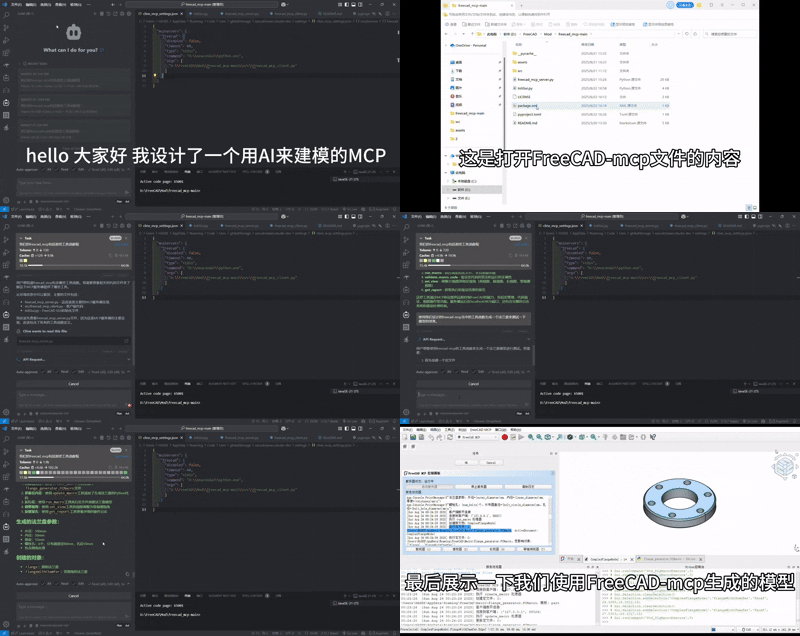 Download the demo video: FreeCAD MCP Demo MP4
Quick Start
- Install the plugin (see Installation).
- Launch FreeCAD and switch to the
FreeCAD MCPworkbench. - Open the control panel (
FreeCAD_MCP_Show) and click "Start Server." - Run an example macro:
python D:\FreeCAD\Mod\FreeCAD-MCP-main\src\freecad_mcp_client.py --run-macro gear.FCMacro --params '{"radius": 15}' - View the result: A gear model is generated and displayed in axonometric view.
Installation
Prerequisites
- FreeCAD: Version 0.21 or higher, Download FreeCAD. Select the version for your operating system.
- Python: Version 3.12+ (included with FreeCAD or installed via Anaconda).
- Anaconda (recommended for dependency management): Download Anaconda. Select the version for your operating system.
- Python Dependencies:
- Required packages:
mcp-server>=1.2.0,httpx>=0.24.1(specified inpyproject.toml). - Installation commands:
# Create and activate Anaconda environment conda create -n freecad_mcp python=3.12 conda activate freecad_mcp pip install mcp-server>=1.2.0 httpx>=0.24.1 # Or use system Python python -m pip install mcp-server>=1.2.0 httpx>=0.24.1 - Verify installation:
Ensurepip show mcp-server httpxmcp-serverversion is >=1.2.0 andhttpxversion is >=0.24.1.
- Required packages:
Installation Steps
-
Clone the Repository:
git clone https://github.com/ATOI-Ming/FreeCAD-MCP.git -
Copy to FreeCAD Mod Directory: Copy the
FreeCAD-MCPfolder to:- Windows:
D:\FreeCAD\Mod\FreeCAD-MCP - Linux:
~/.local/share/FreeCAD/Mod/FreeCAD-MCP - macOS:
~/Library/Application Support/FreeCAD/Mod/FreeCAD-MCP
# Windows example xcopy FreeCAD-MCP D:\FreeCAD\Mod\FreeCAD-MCP /E /H /C /INote: Adjust
D:\FreeCAD\Modbased on your FreeCAD installation path. - Windows:
-
Launch FreeCAD:
- Open FreeCAD and switch to the
FreeCAD MCPworkbench (icon:assets/icon.svg). - Verify that
FreeCAD-MCPis loaded in Edit > Preferences > Add-ons.
- Open FreeCAD and switch to the
-
Verify Installation:
- Click
FreeCAD_MCP_Showto open the control panel. - Check the temporary directory (e.g.,
%TEMP%\freecad_mcp_log.txt) for startup messages.
- Click
MCP Configuration
Configure the MCP client to communicate with FreeCAD via stdio or TCP.
-
Create Configuration File: Create
mcp_config.jsoninD:\FreeCAD\Mod\FreeCAD-MCP-main\src\:{ "mcpServers": { "freecad": { "disabled": false, "timeout": 60, "type": "stdio", "command": "D:\\Anaconda3\\python.exe", "args": ["D:\\FreeCAD\\Mod\\FreeCAD-MCP-main\\src\\freecad_mcp_client.py"] } } }Note:
- Adjust paths based on your system:
- Anaconda Path: e.g.,
C:\Anaconda3\python.exe(Windows),/home/<user>/anaconda3/bin/python(Linux),/Users/<user>/anaconda3/bin/python(macOS). - FreeCAD Mod Path: e.g.,
C:\Users\<YourUser>\AppData\Roaming\FreeCAD\Mod\FreeCAD-MCP(Windows),/home/<user>/.local/share/FreeCAD/Mod/FreeCAD-MCP(Linux),/Users/<user>/Library/Application Support/FreeCAD/Mod/FreeCAD-MCP(macOS).
- Anaconda Path: e.g.,
- For TCP communication, set
"type": "tcp", add"host": "localhost", and"port": 9876.
- Adjust paths based on your system:
-
Run the Server:
- GUI Method: In the
FreeCAD MCPworkbench, clickFreeCAD_MCP_Showand then "Start Server." - Command-Line Method:
conda activate freecad_mcp
python D:\FreeCAD\Mod\FreeCAD-MCP-main\src\freecad_mcp_server.py
- GUI Method: In the
-
Verify Server:
- Check
%TEMP%\freecad_mcp_log.txtfor a "Server started" message. - Test a client command:
python D:\FreeCAD\Mod\FreeCAD-MCP-main\src\freecad_mcp_client.py --get-report
- Check
Usage
GUI Usage
- In FreeCAD, switch to the
FreeCAD MCPworkbench (icon:assets/icon.svg). - Click
FreeCAD_MCP_Showto open the control panel (FreeCADMCPPanel). - Use the control panel:
- Start/Stop Server: Control the MCP server.
- Clear Logs: Clear the report browser and
%TEMP%\freecad_mcp_log.txt. - View Switching: Select front, top, right, or axonometric views.
- Run a macro:
- Click
FreeCAD_MCP_RunMacro, select an.FCMacrofile, and execute it with automatic normalization.
- Click
Command-Line Usage
- Activate the Anaconda environment:
conda activate freecad_mcp - Run client commands:
Examples:python D:\FreeCAD\Mod\FreeCAD-MCP-main\src\freecad_mcp_client.py <command>- Create macro:
--create-macro my_macro --template-type part - Run macro:
--run-macro my_macro.FCMacro --params '{"radius": 10}' - Set view:
--set-view '{"view_type": "7"}' - Get report:
--get-report
- Create macro:
Tool Functions
The following tool functions are provided by freecad_mcp_client.py, sending commands via stdio or TCP (localhost:9876), processed by freecad_mcp_server.py.
| Function | Parameters | Description |
|-----------------------|-----------------------------------------|----------------------------------------------------------------------|
| create_macro | macro_name, template_type | Creates an .FCMacro file, validates name (letters, numbers, underscores, hyphens), supports templates (default, basic, part, sketch). |
| update_macro | macro_name, code | Updates macro content, auto-adds FreeCAD, FreeCADGui, Part, math imports. |
| run_macro | macro_path, params (optional) | Runs a macro, normalizes code, recomputes document, adjusts to axonometric view. |
| validate_macro_code | macro_name (optional), code (optional) | Validates macro code syntax, returns success or error (with traceback). |
| set_view | params (e.g., {"view_type": "7"}) | Sets view: 1 (front), 2 (top), 3 (right), 7 (axonometric). |
| get_report | None | Retrieves server logs (from %TEMP%\freecad_mcp_log.txt and report browser). |
Examples
-
Create Macro:
python D:\FreeCAD\Mod\FreeCAD-MCP-main\src\freecad_mcp_client.py --create-macro gear --template-type partOutput:
{"status": "success", "result": "Macro created"} -
Update Macro:
python D:\FreeCAD\Mod\FreeCAD-MCP-main\src\freecad_mcp_client.py --update-macro gear --code "import FreeCAD, Part\nradius = 10\ngear = Part.makeCylinder(radius, 5)\nPart.show(gear)"Output:
{"status": "success", "result": "Macro updated"} -
Run Macro:
python D:\FreeCAD\Mod\FreeCAD-MCP-main\src\freecad_mcp_client.py --run-macro gear.FCMacro --params '{"radius": 15}'Output:
{"status": "success", "result": {...}} -
Validate Code:
python D:\FreeCAD\Mod\FreeCAD-MCP-main\src\freecad_mcp_client.py --validate-macro-code gear --code "import FreeCAD\nApp.newDocument()"Output:
{"status": "success"} -
Set View:
python D:\FreeCAD\Mod\FreeCAD-MCP-main\src\freecad_mcp_client.py --set-view '{"view_type": "7"}'Output:
{"status": "success", "result": "view set to axonometric"} -
Get Report:
python D:\FreeCAD\Mod\FreeCAD-MCP-main\src\freecad_mcp_client.py --get-reportOutput:
{"status": "success", "result": {...}}
Use Cases
-
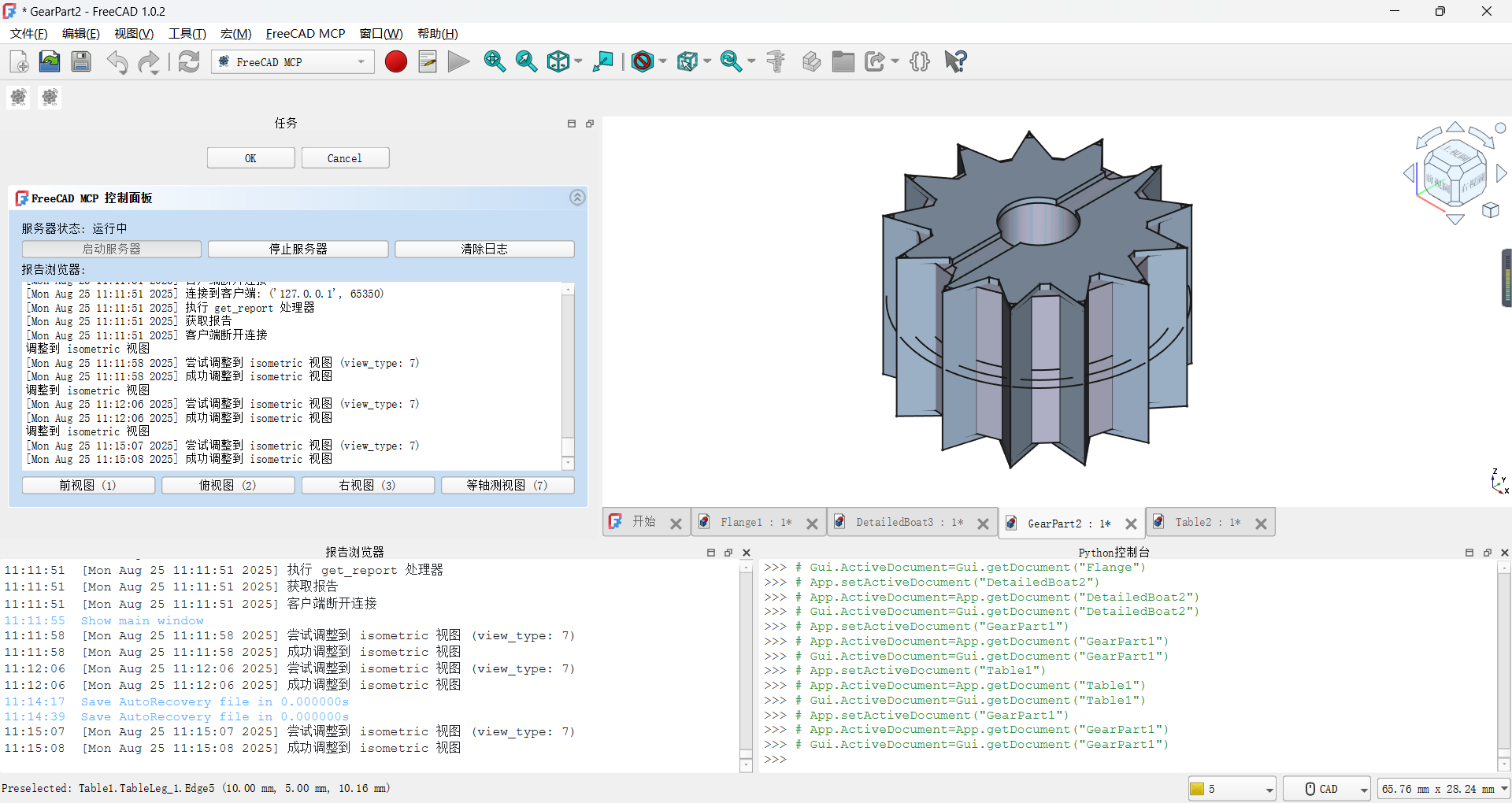
Automated Gear Model Creation:
- Scenario: Generate a parametric gear model for engineering design.
- Steps:
- Create macro:
--create-macro gear --template-type part - Update macro:
--update-macro gear --code "import FreeCAD, Part\nradius = 15\ngear = Part.makeCylinder(radius, 5)\nPart.show(gear)" - Run macro:
--run-macro gear.FCMacro --params '{"radius": 15}'
- Create macro:
- Result: Gear model generated, displayed in axonometric view.
- Output:
-
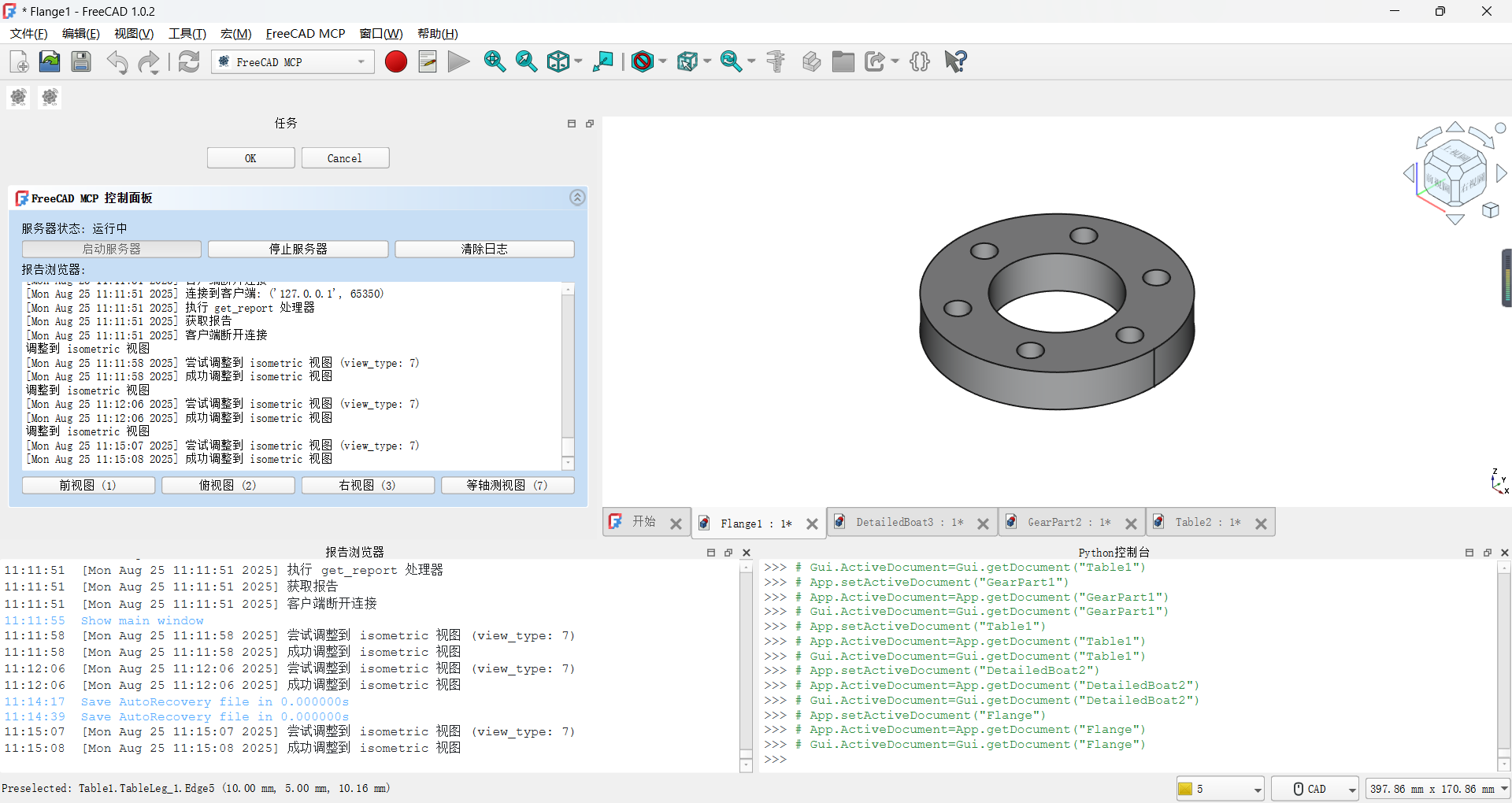
Generating a Flange Model:
- Scenario: Automate creation of a flange with holes for mechanical design.
- Steps: Run macro:
--run-macro flange.FCMacro - Result: Flange model generated with automatic normalization.
- Output:
-
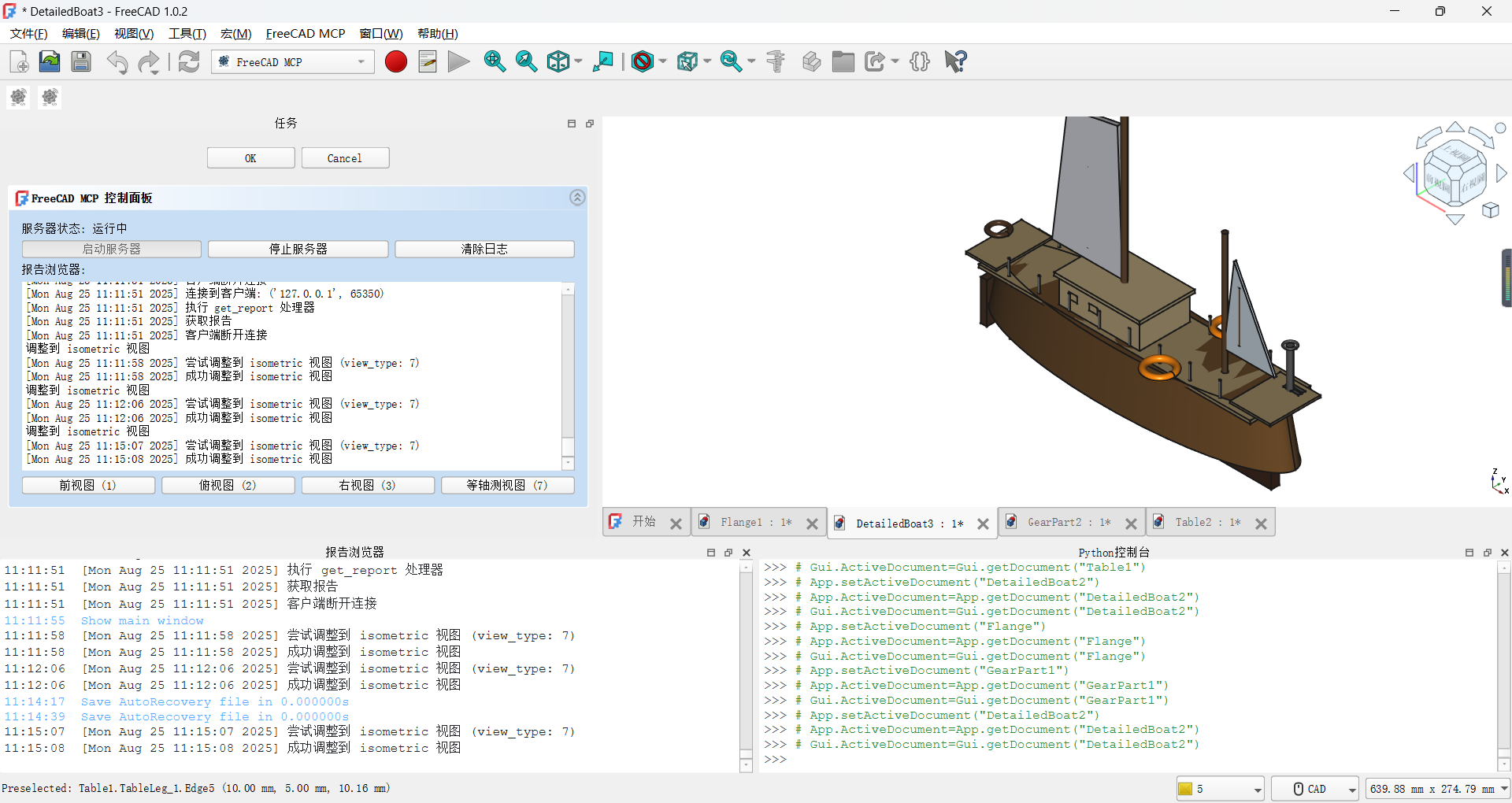
Text-Based Model Generation:
- Scenario: Generate a boat model from a text description (e.g., "create a boat with a curved hull").
- Steps:
- Use Claude to generate
boat.FCMacro. - Run macro:
--run-macro boat.FCMacro
- Use Claude to generate
- Result: Boat model generated with automatic view adjustment.
- Output:
-
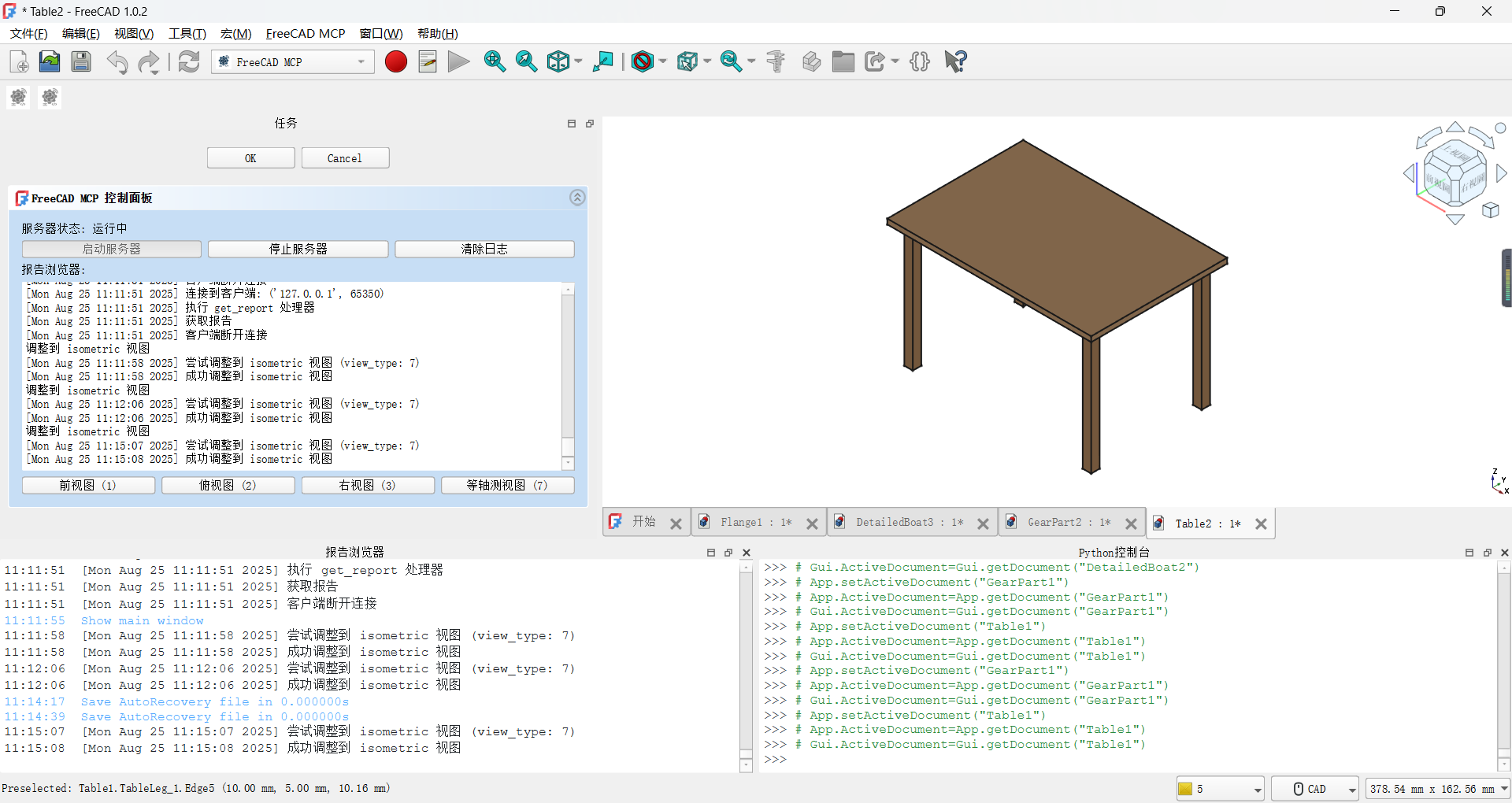
CAD Drawing Recognition:
- Scenario: Recreate a table model from a CAD drawing.
- Steps:
- Use Trace to convert drawing to
table.FCMacro. - Run macro:
--run-macro table.FCMacro
- Use Trace to convert drawing to
- Result: Table model generated.
- Output:
-
Batch Processing Models:
- Scenario: Automate creation of multiple models (e.g., gear and flange).
- Steps:
for macro in gear.FCMacro flange.FCMacro; do python D:\FreeCAD\Mod\FreeCAD-MCP-main\src\freecad_mcp_client.py --run-macro $macro done - Result: Models generated sequentially, logged to
%TEMP%\freecad_mcp_log.txt. - Output: See
gear.pngandflange.png.
External Tool Integration
FreeCAD MCP supports integration with external tools to enhance model generation:
- Claude: AI model for generating
.FCMacrofiles from text descriptions.- Example: Input "create a gear with 10mm radius," generates:
Save asimport FreeCAD, Part radius = 10 gear = Part.makeCylinder(radius, 5) Part.show(gear)gear.FCMacro, run:--run-macro gear.FCMacro.
- Example: Input "create a gear with 10mm radius," generates:
- Trace: CAD drawing processing tool to convert drawings to
.FCMacrofiles.- Example: Convert a table drawing to
table.FCMacro, run:--run-macro table.FCMacro.
- Example: Convert a table drawing to
- Cursor/CodeBuddy: Code editing tools for writing and debugging macro code.
- Example: Edit
flange.FCMacroin Cursor, update:--update-macro flange.FCMacro --code "<code>".
- Example: Edit
Assets
The assets/ directory contains the following resources:
- icon.svg: Icon for
FreeCADMCPWorkbench, used inInitGui.pyandpackage.xml. - gear.png: Example gear model.
- flange.png: Example flange model.
- boat.png: Example boat model.
- table.png: Example table model.
- freecad.gif: Demo animation showing GUI panel, macro execution, and view switching.
- freecad.mp4: Demo video, available for download. Download: FreeCAD MCP Demo MP4
Troubleshooting
- Server Fails to Start:
- Issue: Port 9876 is in use.
- Solution: Check port (
netstat -ano | findstr 9876), change port, or terminate conflicting process.
- Client Connection Failure:
- Issue: Incorrect paths in
mcp_config.json. - Solution: Verify
commandandargspaths, e.g.,D:\Anaconda3\python.exeandD:\FreeCAD\Mod\FreeCAD-MCP-main\src\freecad_mcp_client.py.
- Issue: Incorrect paths in
- Macro Execution Errors:
- Issue: Syntax errors or missing imports in macro code.
- Solution: Use
--validate-macro-codeto check code, review traceback in%TEMP%\freecad_mcp_log.txt.
- Log File Not Generated:
- Issue: No write permission in temporary directory.
- Solution: Check permissions for
%TEMP%\freecad_mcp_log.txt, or specify another path infreecad_mcp_server.py.
- More Help: Submit issues on GitHub (Bug Tracker).
Contributing
Contributions are welcome! Follow these steps:
- Fork the repository:
https://github.com/ATOI-Ming/FreeCAD-MCP. - Create a branch:
git checkout -b feature/your-feature. - Commit changes:
git commit -m "Add your feature". - Push and create a Pull Request.
For questions or collaborations, please open an issue or contact [1757772673@qq.com,抖音:huhushuxue95]
License
This project is licensed under the MIT License. See LICENSE for details.