L
Liblibai MCP
by @mrknow001
哩布哩布AI mcp工具
Created 3/6/2026
Updated about 14 hours ago
README
Repository documentation and setup instructions
LiblibAI MCP Server
一个基于 Python 的 LiblibAI MCP 服务端,使用 Streamable HTTP 传输协议,适合接入支持远程 MCP 的客户端工具。
功能
- 支持 LiblibAI 官方签名鉴权
- 支持本地图片、视频自动上传到 Liblib 可访问地址
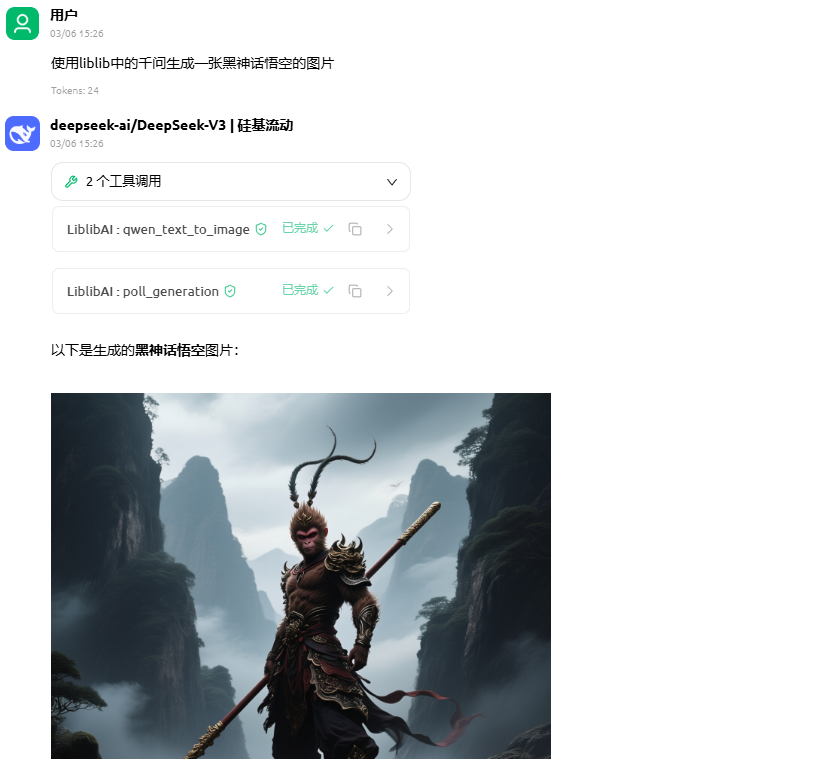
- 支持图片生成、图片编辑、局部重绘、视频生成等常见能力
- 支持异步任务查询与轮询
- 支持生成结果自动下载到本地目录
- 即使文件已下载到本地,仍保留线上 URL,方便继续传给其他工具
已提供的 MCP Tools
server_infoupload_filesubmit_generationstar3_text_to_imagestar3_image_to_imageqwen_text_to_imagekontext_text_to_imagekontext_image_to_imageimg1_generateimg1_inpaintlibdream_text_to_imagelibedit_image_editkling_text_to_videokling_image_to_videokling_multi_image_to_videokling_omni_videoget_generation_statuspoll_generation
运行要求
- Python 3.11+
- Docker
- Docker Compose
- 可用的 LiblibAI
AccessKey和SecretKey
快速开始
※※※后面AI写的,废话挺多的,有docker直接使用如下命令:※※※
docker run -d --rm \
  -p 18081:8000 \
  -e LIBLIB_ACCESS_KEY=你的AccessKey \
  -e LIBLIB_SECRET_KEY=你的SecretKey \
  -v $(pwd)/output:/data/output \
  --name liblibai-mcp-server \
  galaxy5321755/liblibai-mcp-server:latest
一、手动启动
1. 安装依赖
pip install -r requirements.txt
2. 设置环境变量
Linux / macOS:
export PYTHONPATH=./src export LIBLIB_ACCESS_KEY=你的AccessKey export LIBLIB_SECRET_KEY=你的SecretKey
Windows PowerShell:
$env:PYTHONPATH = ".\\src" $env:LIBLIB_ACCESS_KEY = "你的AccessKey" $env:LIBLIB_SECRET_KEY = "你的SecretKey"
3. 启动服务
python -m liblib_mcp.server
4. 导入 MCP
http://127.0.0.1:8000/mcp
健康检查:
http://127.0.0.1:8000/healthz
二、Docker 部署
方式 1:命令启动
1. 构建镜像
docker build -t liblibai-mcp-server .
2. 启动容器
Linux / macOS:
docker run --rm \
-p 18081:8000 \
-e LIBLIB_ACCESS_KEY=你的AccessKey \
-e LIBLIB_SECRET_KEY=你的SecretKey \
-v $(pwd)/output:/data/output \
liblibai-mcp-server
Windows PowerShell:
docker run --rm ` -p 18081:8000 ` -e LIBLIB_ACCESS_KEY=你的AccessKey ` -e LIBLIB_SECRET_KEY=你的SecretKey ` -v ${PWD}\output:/data/output ` liblibai-mcp-server
3. 导入 MCP
http://IP:18081/mcp
健康检查:
http://IP:18081/healthz
方式 2:通过 docker-compose.yml 启动
1. 修改 docker-compose.yml
把下面两个字段替换成你自己的密钥:
- LIBLIB_ACCESS_KEY
- LIBLIB_SECRET_KEY
默认文件中已经留了提示文本:
LIBLIB_ACCESS_KEY: "REPLACE_LIBLIB_ACCESS_KEY"//请替换为你的AccessKey
LIBLIB_SECRET_KEY: "REPLACE_LIBLIB_SECRET_KEY"//请替换为你的SecretKey
2. 启动服务
源码编译镜像
docker compose up -d --build
云端拉取镜像
docker run galaxy5321755/liblibai-mcp-server
3. 导入 MCP
http://IP:18081/mcp
健康检查:
http://IP:18081/healthz
4. 停止服务
docker compose down
数据目录
容器内生成文件目录:
/data/output
docker-compose.yml 和 docker run 都会把它映射到宿主机目录:
./output
生成成功后,通常会看到类似结构:
output/ <generate_uuid>/ images/ videos/ covers/
使用方式
图片生成
常见工具:
- star3_text_to_image
- qwen_text_to_image
- libdream_text_to_image
- img1_generate
图片编辑
常见工具:
- star3_image_to_image
- kontext_image_to_image
- libedit_image_edit
- img1_inpaint
视频生成
常见工具:
- kling_text_to_video
- kling_image_to_video
- kling_multi_image_to_video
- kling_omni_video
通用透传
当专用工具不够用时,使用:
- submit_generation
本地文件输入
以下场景可以直接传本地文件路径,服务端会自动先上传到 Liblib,再把请求里的对应字段替换成线上 URL:
- 原图
- 蒙版图
- 控制图
- 参考图
- 首帧图
- 尾帧图
- 参考视频
这样可以避免手动先上传文件。
任务结果
生成任务通常是异步的,推荐流程:
- 调用生成工具提交任务
- 拿到 generate_uuid
- 用 poll_generation 等待完成
- 或用 get_generation_status 查询单次状态
结果中会同时保留:
- 远程 URL
- 本地下载路径
例如图片结果:
- remote_url
- local_path
例如视频结果:
- remote_url
- local_path
- cover_url
- cover_local_path
默认参数策略
为了提升使用体验,大多数“专业参数”默认都是可选的。用户不传时,服务端会使用预设默认值。
例如:
- Star-3 默认 img_count=1、steps=30
- Qwen Image 默认 clip_skip=2、sampler=1、steps=30、cfg_scale=4.0
- Kling 默认 aspect_ratio=16:9、duration=5
- 轮询默认每 5 秒一次,超时 900 秒
说明
这个仓库提供的是已经封装好的 LiblibAI MCP 服务端。
如果你只想使用,不需要了解内部实现,重点关注:
- 手动启动方式
- docker run 启动方式
- docker-compose.yml 启动方式
- MCP 地址
- 输出目录
Quick Setup
Installation guide for this server
Install Package (if required)
uvx liblibai-mcp
Cursor configuration (mcp.json)
{
"mcpServers": {
"mrknow001-liblibai-mcp": {
"command": "uvx",
"args": [
"liblibai-mcp"
]
}
}
}