Auto-click Chrome DevTools MCP remote debugging approval on macOS with Hammerspoon
Chrome DevTools MCP Auto-Allow for macOS
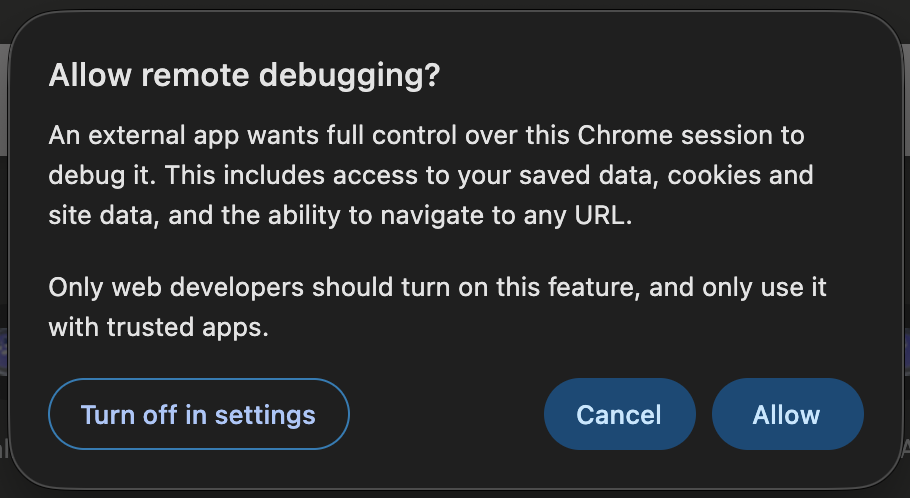
Automatically clicks Chrome's "Allow remote debugging?" dialog when Chrome DevTools MCP connects with --autoConnect.
This uses Hammerspoon and macOS Accessibility automation. It does not disable Chrome's permission prompt; it watches for the dialog and presses the visible Allow button.
Security warning
This script automatically approves Chrome remote debugging prompts. Only use it on a trusted machine, with trusted MCP clients. Remote debugging can give another local process broad control over the browser session.
Requirements
- macOS
- Hammerspoon
- Accessibility permission granted to Hammerspoon
- Chrome, Chrome Beta, Chrome Canary, or Chromium
- English Chrome UI
Install
- Install and open Hammerspoon.
- Grant Hammerspoon Accessibility access in
System Settings > Privacy & Security > Accessibility. - Copy
init.luainto~/.hammerspoon/init.lua, or paste its contents into your existing Hammerspoon config. - Reload Hammerspoon config.
When Chrome shows the remote debugging approval dialog, the script scans Chrome's accessibility tree and presses Allow.
It polls running Chrome windows every 0.5 seconds, so the click usually happens shortly after the dialog appears.
The polling timer is stored globally so Hammerspoon keeps it alive after the config finishes loading.
You can also trigger a manual scan with:
Ctrl + Option + Command + D
Chrome DevTools MCP
This is useful when running Chrome DevTools MCP with --autoConnect, where Chrome asks the user to approve the remote debugging connection.
If you control the browser launch yourself, a dedicated debugging profile with --remote-debugging-port and MCP --browserUrl may be cleaner. This script is meant for the case where you want to keep using Chrome's interactive approval flow but remove the repetitive click.
Troubleshooting
Open the Hammerspoon Console and check for logs:
Chrome DevTools auto-allow script loaded
Matched remote debugging dialog
Pressing Allow
If the dialog is detected but the button is not pressed, run debug-dialogs.lua in the Hammerspoon Console while the dialog is visible to inspect native Chrome dialog containers. Then run debug-press.lua to inspect the matched Allow button and test AXPress.
Chrome may expose button text through AXDescription instead of AXTitle. The included script checks both, plus AXValue and AXHelp.
Tested With
- macOS
- Google Chrome
- Hammerspoon
- Chrome DevTools MCP
--autoConnect
License
MIT