Supercharge your Electron development with AI-powered automation. Control, debug, and test any Electron app using the Model Context Protocol (MCP).
Debug Electron MCP



A powerful Model Context Protocol (MCP) server that provides comprehensive Electron application automation, debugging, and observability capabilities. Supercharge your Electron development workflow with AI-powered automation through Chrome DevTools Protocol integration.
🎯 What Makes This Special
Transform your Electron development experience with AI-powered automation:
- 🔄 Real-time UI Automation: Click buttons, fill forms, and interact with any Electron app programmatically
- 📸 Visual Debugging: Take screenshots and capture application state without interrupting development
- 🔍 Deep Inspection: Extract DOM elements, application data, and performance metrics in real-time
- ⚡ DevTools Protocol Integration: Universal compatibility with any Electron app - no modifications required
- 🚀 Development Observability: Monitor logs, system info, and application behavior seamlessly
🚀 Key Features
🎮 Application Control & Automation
- Launch & Manage: Start, stop, and monitor Electron applications with full lifecycle control
- Interactive Automation: Execute JavaScript code directly in running applications via WebSocket
- UI Testing: Automate button clicks, form interactions, and user workflows
- Process Management: Track PIDs, monitor resource usage, and handle graceful shutdowns
📊 Advanced Observability
- Screenshot Capture: Non-intrusive visual snapshots using Playwright and Chrome DevTools Protocol
- Real-time Logs: Stream application logs (main process, renderer, console) with filtering
- Window Information: Get detailed window metadata, titles, URLs, and target information
- System Monitoring: Track memory usage, uptime, and performance metrics
🛠️ Development Productivity
- Universal Compatibility: Works with any Electron app without requiring code modifications
- DevTools Integration: Leverage Chrome DevTools Protocol for powerful debugging capabilities
- Build Automation: Cross-platform building for Windows, macOS, and Linux
- Environment Management: Clean environment handling and debugging port configuration
🚀 Quick Start
Just add to your MCP config and go! No environment variables needed.
VS Code:
{
  "mcp": {
    "servers": {
      "debug-electron-mcp": {
        "command": "npx",
        "args": ["-y", "@debugelectron/debug-electron-mcp@latest"]
      }
    }
  }
}
Claude Desktop:
{
  "mcpServers": {
    "debug-electron-mcp": {
      "command": "npx",
      "args": ["-y", "@debugelectron/debug-electron-mcp@latest"]
    }
  }
}
Cursor IDE (%APPDATA%\Cursor\mcp_config.json):
{
  "mcpServers": {
    "debug-electron-mcp": {
      "command": "npx",
      "args": ["-y", "@debugelectron/debug-electron-mcp@latest"]
    }
  }
}
That's it! The server is ready to use.
📦 Installation
See Quick Start above for MCP configuration. For global installation:
npm install -g @debugelectron/debug-electron-mcp
Demo
See the Electron MCP Server in action:
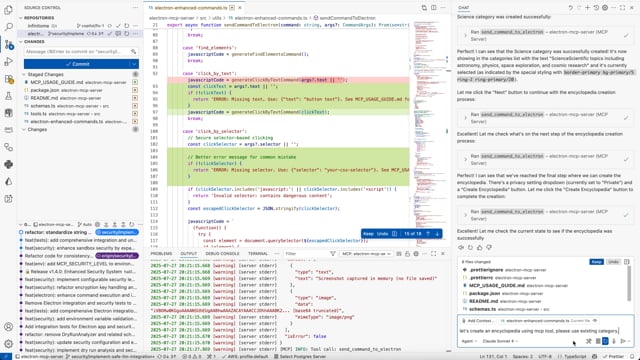
Watch how easy it is to automate Electron applications with AI-powered MCP commands.
⚡ Enabling Remote Debugging (Required)
CRITICAL: For the Electron MCP Server to communicate with your Electron application, the app MUST be started with Chrome DevTools Protocol (CDP) remote debugging enabled on port 9222. Without this, the MCP server cannot connect to or control the application.
🔍 How It Works
The Electron MCP Server uses the Chrome DevTools Protocol (CDP) to:
- Connect to your Electron app via WebSocket
- Execute JavaScript in the renderer process
- Capture screenshots and inspect the DOM
- Automate UI interactions (clicks, form fills, etc.)
The server automatically scans ports 9222-9225 to find running Electron apps with debugging enabled.
📋 Configuration Methods
Choose ONE of the following methods to enable remote debugging:
Method 1: Command Line Flag (Recommended for Quick Testing)
Start your Electron app with the --remote-debugging-port flag:
# Using electron directly
electron . --remote-debugging-port=9222

# Using npx
npx electron . --remote-debugging-port=9222

# Via npm script
npm start -- --remote-debugging-port=9222
Method 2: Modify package.json Scripts (Recommended for Projects)
This is the most reliable method. It creates a dedicated command for launching your app with AI capabilities enabled.
Step 1: Open your package.json file
Locate the file in the root of your project.
Step 2: Find the "scripts" section
It usually looks like this:
"scripts": {
  "start": "electron .",
  "build": "electron-builder"
}
Step 3: Add the debug script
Add a new script (e.g., "dev") that includes the --remote-debugging-port=9222 flag.
Make sure to add a comma (,) to the end of the previous line!
"scripts": {
  "start": "electron .",  <-- Add comma here if needed
  "build": "electron-builder", <-- Add comma here
  "dev": "electron . --remote-debugging-port=9222"  <-- ADD THIS LINE
}
Note for Frameworks:
- If you use Electron Forge:
"dev": "electron-forge start -- -- --remote-debugging-port=9222" - If you use Electron Builder:
"dev": "electron-builder start -- --remote-debugging-port=9222" - Generally, append the flag after your usual start command.
Step 4: Run the script Execute the command in your terminal:
npm run dev
Your app will launch with port 9222 open, ready for the MCP server to connect.
Method 3: Programmatic Configuration (Best for Production Apps)
Add this code to your Electron app's main process file (usually main.js or main.ts):
const { app } = require('electron');

// Enable remote debugging based on environment or command line args
const enableRemoteDebugging =
  process.env.NODE_ENV === 'development' ||
  process.env.ELECTRON_MCP_DEBUG === 'true' ||
  process.argv.includes('--dev') ||
  process.argv.includes('--remote-debugging-port=9222');

if (enableRemoteDebugging) {
  // IMPORTANT: This must be called BEFORE app.whenReady()
  app.commandLine.appendSwitch('remote-debugging-port', '9222');
  console.log('🔧 Remote debugging enabled on port 9222');
}

// Rest of your app initialization...
app.whenReady().then(() => {
  // Create windows, etc.
});
TypeScript version:
import { app } from 'electron';

const enableRemoteDebugging =
  process.env.NODE_ENV === 'development' ||
  process.env.ELECTRON_MCP_DEBUG === 'true' ||
  process.argv.includes('--dev');

if (enableRemoteDebugging) {
  app.commandLine.appendSwitch('remote-debugging-port', '9222');
  console.log('🔧 Remote debugging enabled on port 9222');
}
Method 4: Environment Variable (CI/CD Friendly)
Set an environment variable before starting your app:
Windows (PowerShell):
$env:ELECTRON_MCP_DEBUG = "true"
npm start
Windows (CMD):
set ELECTRON_MCP_DEBUG=true && npm start
macOS/Linux:
ELECTRON_MCP_DEBUG=true npm start
Then check for this variable in your main process (see Method 3).
✅ Verifying Remote Debugging is Enabled
When remote debugging is properly enabled, you'll see a message like this in your console:
DevTools listening on ws://127.0.0.1:9222/devtools/browser/xxxxxxxx-xxxx-xxxx-xxxx-xxxxxxxxxxxx
You can also verify by opening this URL in a browser:
http://localhost:9222/json
This should return a JSON array of available debugging targets.
🚨 Common Issues
| Issue | Cause | Solution |
|-------|-------|----------|
| "No running Electron application found" | App not started with debugging | Use --remote-debugging-port=9222 flag |
| Port 9222 already in use | Another debugger or Electron app is running | Close other apps or use a different port (9223-9225) |
| Connection refused | Firewall blocking localhost | Check firewall settings for port 9222 |
| app.commandLine.appendSwitch not working | Called after app.whenReady() | Move the call to the top of main.js, before any async code |
🤖 For AI Assistants
When configuring an Electron app for MCP Server:
- Check if already configured: Look for
--remote-debugging-portinpackage.jsonscripts orapp.commandLine.appendSwitchin the main process file - Preferred method: Modify
package.jsonto add adevordebugscript with--remote-debugging-port=9222 - Always verify: After starting the app, use
get_electron_window_infoorlist_electron_windowsto confirm connection - Port range: The MCP server scans ports 9222-9225, so any of these ports will work
🎯 Proper MCP Usage Guide
⚠️ Critical: Argument Structure
The most common mistake when using this MCP server is incorrect argument structure for the send_command_to_electron tool.
❌ Wrong (causes "selector is empty" errors):
{
  "command": "click_by_selector",
  "args": "button.submit-btn"  // ❌ Raw string - WRONG!
}
✅ Correct:
{
  "command": "click_by_selector",
  "args": {
    "selector": "button.submit-btn"  // ✅ Object with selector property
  }
}
📋 Command Argument Reference
| Command | Required Args | Example |
| --------------------------------------- | ----------------------------------------------------------------------------------- | ------------------------------------------------ |
| click_by_selector | {"selector": "css-selector"} | {"selector": "button.primary"} |
| click_by_text | {"text": "button text"} | {"text": "Submit"} |
| fill_input | {"value": "text", "selector": "..."} or {"value": "text", "placeholder": "..."} | {"placeholder": "Enter name", "value": "John"} |
| send_keyboard_shortcut | {"text": "key combination"} | {"text": "Ctrl+N"} |
| eval | {"code": "javascript"} | {"code": "document.title"} |
| get_title, get_url, get_body_text | No args needed | {} or omit args |
🔄 Recommended Workflow
- Inspect: Start with
get_page_structureordebug_elements - Target: Use specific selectors or text-based targeting
- Interact: Use the appropriate command with correct argument structure
- Verify: Take screenshots or check page state
// Step 1: Understand the page
{
  "command": "get_page_structure"
}

// Step 2: Click button using text (most reliable)
{
  "command": "click_by_text",
  "args": {
    "text": "Create New Encyclopedia"
  }
}

// Step 3: Fill form field
{
  "command": "fill_input",
  "args": {
    "placeholder": "Enter encyclopedia name",
    "value": "AI and Machine Learning"
  }
}

// Step 4: Submit with selector
{
  "command": "click_by_selector",
  "args": {
    "selector": "button[type='submit']"
  }
}
🐛 Troubleshooting Common Issues
| Error | Cause | Solution |
| -------------------------------- | -------------------------------- | ------------------------------ |
| "The provided selector is empty" | Passing string instead of object | Use {"selector": "..."} |
| "Element not found" | Wrong selector | Use get_page_structure first |
| "Click prevented - too soon" | Rapid consecutive clicks | Wait before retrying |
🔧 Available Tools
launch_electron_app
Launch an Electron application with debugging capabilities.
{
  "appPath": "/path/to/electron-app",
  "devMode": true,  // Enables Chrome DevTools Protocol on port 9222
  "args": ["--enable-logging", "--dev"]
}
Returns: Process ID and launch confirmation
get_electron_window_info
Get comprehensive window and target information via Chrome DevTools Protocol.
{
  "includeChildren": true  // Include child windows and DevTools instances
}
Returns:
- Window IDs, titles, URLs, and types
- DevTools Protocol target information
- Platform details and process information
take_screenshot
Capture high-quality screenshots using Playwright and Chrome DevTools Protocol.
{
  "outputPath": "/path/to/screenshot.png",  // Optional: defaults to temp directory
  "windowTitle": "My App"  // Optional: target specific window
}
Features:
- Non-intrusive capture (doesn't bring window to front)
- Works with any Electron app
- Fallback to platform-specific tools if needed
send_command_to_electron
Execute JavaScript commands in the running Electron application via WebSocket.
{
  "command": "eval",  // Built-in commands: eval, get_title, get_url, click_button, console_log
  "args": {
    "code": "document.querySelector('button').click(); 'Button clicked!'"
  }
}
Enhanced UI Interaction Commands:
find_elements: Analyze all interactive UI elements with their properties and positionsclick_by_text: Click elements by their visible text, aria-label, or title (more reliable than selectors)fill_input: Fill input fields by selector, placeholder text, or associated label textselect_option: Select dropdown options by value or visible textget_page_structure: Get organized overview of all page elements (buttons, inputs, selects, links)get_title: Get document titleget_url: Get current URLget_body_text: Extract visible text contentclick_button: Click buttons by CSS selector (basic method)console_log: Send console messageseval: Execute custom JavaScript code
Recommended workflow: Use get_page_structure first to understand available elements, then use specific interaction commands like click_by_text or fill_input.
read_electron_logs
Stream application logs from main process, renderer, and console.
{
  "logType": "all",  // Options: "all", "main", "renderer", "console"
  "lines": 50,       // Number of recent lines
  "follow": false    // Stream live logs
}
close_electron_app
Gracefully close the Electron application.
{
  "force": false  // Force kill if unresponsive
}
build_electron_app
Build Electron applications for distribution.
{
  "projectPath": "/path/to/project",
  "platform": "darwin",  // win32, darwin, linux
  "arch": "x64",         // x64, arm64, ia32
  "debug": false
}
🎮 Demo Application
Try the interactive demo app to test all MCP Server features:
cd examples/demo-app
npm install
npm run dev
The demo app includes:
- Interactive UI Elements: Buttons, forms, dropdowns, checkboxes
- Real-time Event Logging: Monitor all interactions
- MCP Command Examples: Built-in usage guide
- DevTools Integration: Automatically enabled on port 9222
See examples/demo-app/README.md for detailed instructions.
💡 Usage Examples
Smart UI Interaction Workflow
// 1. First, understand the page structure
await send_command_to_electron({
  command: 'get_page_structure',
});

// 2. Click a button by its text (much more reliable than selectors)
await send_command_to_electron({
  command: 'click_by_text',
  args: {
    text: 'Login', // Finds buttons containing "Login" in text, aria-label, or title
  },
});

// 3. Fill inputs by their label or placeholder text
await send_command_to_electron({
  command: 'fill_input',
  args: {
    text: 'username', // Finds input with label "Username" or placeholder "Enter username"
    value: 'john.doe@example.com',
  },
});

await send_command_to_electron({
  command: 'fill_input',
  args: {
    text: 'password',
    value: 'secretpassword',
  },
});

// 4. Select dropdown options by visible text
await send_command_to_electron({
  command: 'select_option',
  args: {
    text: 'country', // Finds select with label containing "country"
    value: 'United States', // Selects option with this text
  },
});

// 5. Take a screenshot to verify the result
await take_screenshot();
Advanced Element Detection
// Find all interactive elements with detailed information
await send_command_to_electron({
  command: 'find_elements',
});

// This returns detailed info about every clickable element and input:
// {
//   "type": "clickable",
//   "text": "Submit Form",
//   "id": "submit-btn",
//   "className": "btn btn-primary",
//   "ariaLabel": "Submit the registration form",
//   "position": { "x": 100, "y": 200, "width": 120, "height": 40 },
//   "visible": true
// }
Automated UI Testing
// Launch app in development mode
await launch_electron_app({
  appPath: '/path/to/app',
  devMode: true,
});

// Take a screenshot
await take_screenshot();

// Click a button programmatically
await send_command_to_electron({
  command: 'eval',
  args: {
    code: "document.querySelector('#submit-btn').click()",
  },
});

// Verify the result
await send_command_to_electron({
  command: 'get_title',
});
Development Debugging
// Get window information
const windowInfo = await get_electron_window_info();

// Extract application data
await send_command_to_electron({
  command: 'eval',
  args: {
    code: 'JSON.stringify(window.appState, null, 2)',
  },
});

// Monitor logs
await read_electron_logs({
  logType: 'all',
  lines: 100,
});
Performance Monitoring
// Get system information
await send_command_to_electron({
  command: 'eval',
  args: {
    code: '({memory: performance.memory, timing: performance.timing})',
  },
});

// Take periodic screenshots for visual regression testing
await take_screenshot({
  outputPath: '/tests/screenshots/current.png',
});
🏗️ Architecture
Chrome DevTools Protocol Integration
- Universal Compatibility: Works with any Electron app that has remote debugging enabled
- Real-time Communication: WebSocket-based command execution with the renderer process
- No App Modifications: Zero changes required to target applications
Process Management
- Clean Environment: Handles
ELECTRON_RUN_AS_NODEand other environment variables - Resource Tracking: Monitors PIDs, memory usage, and application lifecycle
- Graceful Shutdown: Proper cleanup and process termination
Cross-Platform Support
- macOS: Uses Playwright CDP with screencapture fallback
- Windows: PowerShell-based window detection and capture
- Linux: X11 window management (planned)
🧪 Development
Prerequisites
-
Node.js 18+
-
TypeScript 4.5+
-
Electron - Required for running and testing Electron applications
# Install Electron globally (recommended)
npm install -g electron

# Or install locally in your project
npm install electron --save-dev
Target Application Setup
For the MCP server to work with your Electron application, you need to enable remote debugging. Add this code to your Electron app's main process:
const { app } = require('electron');
const isDev = process.env.NODE_ENV === 'development' || process.argv.includes('--dev');

// Enable remote debugging in development mode
if (isDev) {
  app.commandLine.appendSwitch('remote-debugging-port', '9222');
}
Alternative approaches:
# Launch your app with debugging enabled
electron . --remote-debugging-port=9222

# Or via npm script
npm run dev -- --remote-debugging-port=9222
Note: The MCP server automatically scans ports 9222-9225 to detect running Electron applications with remote debugging enabled.
Setup
git clone https://github.com/TheDarkSkyXD/debug-electron-mcp.git
cd debug-electron-mcp

npm install
npm run build

# Run tests
npm test

# Development mode with auto-rebuild
npm run dev
Testing
The project includes comprehensive test files for React compatibility:
# Run React compatibility tests
cd tests/integration/react-compatibility
electron test-react-electron.js
See tests/integration/react-compatibility/README.md for detailed testing instructions and scenarios.
React Compatibility
This MCP server has been thoroughly tested with React applications and handles common React patterns correctly:
- ✅ React Event Handling: Properly handles
preventDefault()in click handlers - ✅ Form Input Detection: Advanced scoring algorithm works with React-rendered inputs
- ✅ Component Interaction: Compatible with React components, hooks, and state management
Project Structure
src/
├── handlers.ts      # MCP tool handlers
├── index.ts         # Server entry point
├── tools.ts         # Tool definitions
├── screenshot.ts    # Screenshot functionality
├── utils/
│   ├── process.ts   # Process management & DevTools Protocol
│   ├── logs.ts      # Log management
│   └── project.ts   # Project scaffolding
└── schemas/         # JSON schemas for validation
🔐 Security & Best Practices
- Sandboxed Execution: All JavaScript execution is contained within the target Electron app
- Path Validation: Only operates on explicitly provided application paths
- Process Isolation: Each launched app runs in its own process space
- No Persistent Access: No permanent modifications to target applications
🤝 Contributing
We welcome contributions! Please see our Contributing Guide for details.
Before reporting issues: Please use the standardized ISSUE_TEMPLATE.md for proper bug reporting format. For React compatibility problems or similar technical issues, also review REACT_COMPATIBILITY_ISSUES.md for detailed debugging examples, including proper command examples, error outputs, and reproduction steps.
- Fork the repository
- Create a feature branch (
git checkout -b feature/awesome-feature) - Commit your changes (
git commit -m 'Add awesome feature') - Push to the branch (
git push origin feature/awesome-feature) - Open a Pull Request
📄 License
This project is licensed under the MIT License - see the LICENSE file for details.
🙌 Credits & Attribution
Original Author: Halil Ural
This project is a fork of halilural/electron-mcp-server with enhancements for Cursor IDE compatibility and improved stability.
Forked & Maintained By
- Antigravity - Cursor IDE integration improvements, bug fixes, and ongoing maintenance
Key Improvements in This Fork
- ✅ Cursor IDE Compatibility: Full integration with Cursor IDE for seamless AI-powered Electron automation
- ✅ Enhanced Stability: Improved error handling and reliability
- ✅ Better Documentation: Added comprehensive guides for local development and troubleshooting
- ✅ Scoped Package: Published as
@debugelectron/electron-mcp-serveron npm
Contributing to This Fork
We welcome contributions! If you have improvements or bug fixes, please feel free to:
- Fork this repository
- Create a feature branch
- Submit a pull request with your improvements
☕ Support
If this project helped you, consider buying me a coffee! ☕

Your support helps me maintain and improve this project. Thank you! 🙏
🙏 Acknowledgments
- Model Context Protocol - Standardized AI-application interface
- Chrome DevTools Protocol - Universal debugging interface
- Playwright - Reliable browser automation
- Electron - Cross-platform desktop applications
🔗 Links
- GitHub Repository
- NPM Package
- Original Repository - Original project by Halil Ural
- Model Context Protocol
- Chrome DevTools Protocol Docs
- Cursor IDE Setup Guide - Complete setup guide for Cursor IDE integration
- Issue Template - Standardized bug reporting format
- React Compatibility Issues Documentation - Technical debugging guide for React applications
Ready to supercharge your Electron development with AI-powered automation? Install the MCP server and start building smarter workflows today! 🚀