MCP Server to search and retrieve SAP Notes
SAP Note Search MCP Server
MCP server for searching and retrieving SAP Notes / KB articles with full metadata extraction



[!CAUTION] This MCP Server uses private APIs from SAP behind authentication. Please check whether the use violates SAP's ToS. The author assumes no liability for this. Because of this i do not guarantee that the server will always work.
This Model Context Protocol (MCP) server gives AI coding assistants (Cursor, Claude Desktop, VS Code, etc.) direct access to SAP Notes and Knowledge Base articles. It authenticates with SAP via username/password or SAP Passport certificate and uses Playwright browser automation to retrieve actual note content.
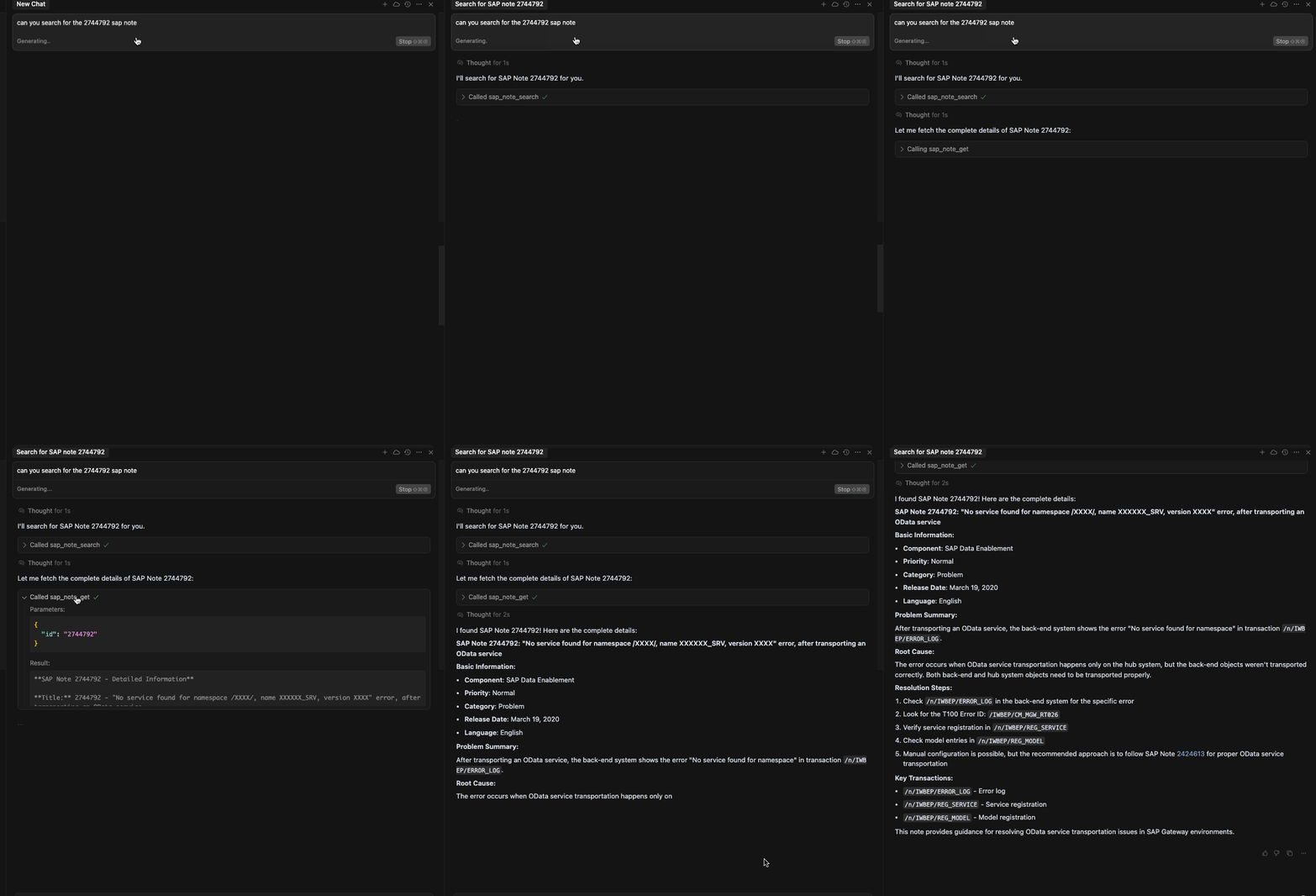
Live Preview in Cursor
Features
- Two MCP tools —
search(find notes) andfetch(retrieve full content + metadata) - Enriched metadata — validity ranges, support packages, references, prerequisites, side effects, correction summaries, attachments
- Optional correction details —
fetch(includeCorrections=true)retrieves detailed ABAP correction instructions (affected objects, per-correction prerequisites) via an additional OData call - Two auth methods — username/password (recommended) or SAP Passport certificate
- MFA/2FA support — manual code entry in headful mode
- Smart caching — session cookies cached locally (configurable TTL)
- Docker support — pre-built image with all Playwright dependencies
Quick Start
Prerequisites
- Node.js 18+ — Download here
- SAP S-User — with access to SAP Support Portal / me.sap.com
- An MCP client — Cursor, Claude Desktop, VS Code with Copilot, etc.
Installation
git clone https://github.com/marianfoo/mcp-sap-notes
cd mcp-sap-notes
npm install
npm run build
Authentication
The server supports two methods. Choose whichever is easier for you.
Option 1: Username / Password (Recommended)
The simplest approach — no certificate management required.
SAP_USERNAME=your.email@company.com
SAP_PASSWORD=your_sap_password
Or pass credentials directly in your MCP client config (no .env file needed):
{
  "mcpServers": {
    "sap-notes": {
      "command": "node",
      "args": ["/path/to/mcp-sap-notes/dist/mcp-server.js"],
      "env": {
        "SAP_USERNAME": "your.email@company.com",
        "SAP_PASSWORD": "your_sap_password"
      }
    }
  }
}
Option 2: SAP Passport Certificate
Uses a .pfx client certificate for TLS-level authentication.
- Download your certificate from SAP Passport
- Place the
.pfxfile incerts/:mkdir -p certs cp ~/Downloads/sap.pfx certs/ - Configure:
PFX_PATH=./certs/sap.pfx
PFX_PASSPHRASE=your_certificate_passphrase
Auto Mode (Default)
When AUTH_METHOD=auto (the default), the server picks the first available method:
- Password — if
SAP_USERNAME+SAP_PASSWORDare set - Certificate — if
PFX_PATH+PFX_PASSPHRASEare set - Error — if neither is configured
You can force a method with AUTH_METHOD=password or AUTH_METHOD=certificate.
MFA / 2FA
If your SAP account uses two-factor authentication:
HEADFUL=true       # show the browser window so you can enter the code
MFA_TIMEOUT=120000 # wait up to 2 minutes for code entry (ms)
The server detects TOTP, passcode, and verification pages automatically and waits for you to complete the challenge.
Token Caching
After successful login, session cookies are cached to token-cache.json (default TTL: 12 hours, configurable via MAX_JWT_AGE_H). Delete the file to force re-authentication.
Connect to your MCP Client
Cursor / Claude Desktop
Add to your MCP settings (settings.json or claude_desktop_config.json):
With username/password (recommended):
{
  "mcpServers": {
    "sap-notes": {
      "command": "node",
      "args": ["/full/path/to/mcp-sap-notes/dist/mcp-server.js"],
      "env": {
        "SAP_USERNAME": "your.email@company.com",
        "SAP_PASSWORD": "your_sap_password"
      }
    }
  }
}
With certificate (via .env file):
{
  "mcpServers": {
    "sap-notes": {
      "command": "node",
      "args": ["/full/path/to/mcp-sap-notes/dist/mcp-server.js"]
    }
  }
}
Note: Replace the path with your actual absolute path. On Windows use
C:\\Users\\you\\..., on macOS/Linux use/Users/you/....
After adding the config, restart your MCP client. The tools will appear in the AI assistant.
Available Tools
search
Search SAP Notes by keyword, error code, component, or note number.
| Parameter | Type | Required | Default | Description |
|-----------|------|----------|---------|-------------|
| q | string | Yes | — | Search query (2-200 chars) |
| lang | EN | DE | No | EN | Language |
Examples:
Search for SAP Notes about "OData gateway error 415"
Find SAP Note 2744792
fetch
Retrieve full content and enriched metadata for a specific SAP Note.
| Parameter | Type | Required | Default | Description |
|-----------|------|----------|---------|-------------|
| id | string | Yes | — | Note ID (alphanumeric) |
| lang | EN | DE | No | EN | Language |
| includeCorrections | boolean | No | false | Fetch detailed ABAP correction instructions via OData |
Returns (beyond the basic content):
- Software component validity ranges
- Support packages and patches
- Cross-references (to/from other notes)
- Prerequisites, side effects
- Correction instruction summaries and counts
- Manual activity instructions
- Attachments and SNOTE download URL
- (with
includeCorrections=true) Detailed correction entries with affected ABAP objects (TADIR) and per-correction prerequisites
Examples:
Get the full content of SAP Note 2744792
Show me note 3481252 with correction details
Docker
A Dockerfile is included with all Playwright/Chromium dependencies pre-installed:
docker build -t mcp-sap-notes .
docker run -it \
  -e SAP_USERNAME="your.email@company.com" \
  -e SAP_PASSWORD="your_sap_password" \
  mcp-sap-notes
Configuration Reference
Environment Variables
| Variable | Required | Default | Description |
|----------|----------|---------|-------------|
| SAP_USERNAME | * | — | SAP login username (email) |
| SAP_PASSWORD | * | — | SAP login password |
| PFX_PATH | * | — | Path to SAP Passport .pfx certificate |
| PFX_PASSPHRASE | * | — | Certificate passphrase |
| AUTH_METHOD | No | auto | auto, password, or certificate |
| MFA_TIMEOUT | No | 120000 | 2FA wait timeout in ms |
| MAX_JWT_AGE_H | No | 12 | Token cache lifetime in hours |
| HEADFUL | No | false | Show browser window (for debugging / 2FA) |
| LOG_LEVEL | No | info | debug, info, warn, error |
| HTTP_PORT | No | 3123 | Port for HTTP MCP transport |
| ACCESS_TOKEN | No | — | Bearer token for HTTP server auth |
* At least one auth pair is required: either SAP_USERNAME + SAP_PASSWORD or PFX_PATH + PFX_PASSPHRASE.
HTTP Server
An HTTP/SSE transport is also available for remote or multi-client setups:
npm run serve:http          # start HTTP server
npm run serve:http:debug    # with debug logging
Protect with a bearer token:
ACCESS_TOKEN=your-secret-token
Clients must then include Authorization: Bearer your-secret-token in every request.
Testing & Development
npm run test:auth         # test authentication flow
npm run test:api          # test SAP Notes API
npm run test:mcp          # test full MCP server
npm run test              # run all tests
Debug mode:
HEADFUL=true LOG_LEVEL=debug npm run test:auth
Project Structure
mcp-sap-notes/
├── src/
│   ├── mcp-server.ts          # Main MCP server (stdio transport)
│   ├── http-mcp-server.ts     # HTTP/SSE MCP transport
│   ├── auth.ts                # SAP authentication (password + certificate)
│   ├── sap-notes-api.ts       # SAP Notes API client + OData corrections
│   ├── html-utils.ts          # HTML-to-text parsing
│   ├── schemas/
│   │   └── sap-notes.ts       # Zod schemas + tool descriptions
│   ├── types.ts               # TypeScript definitions
│   └── logger.ts              # Logging
├── docs/
│   ├── tools.md               # Detailed tool reference
│   ├── authentication.md      # Auth deep dive
│   ├── architecture.md        # Architecture overview
│   └── setup.md               # Setup guide
├── test/                      # Test scripts
├── dist/                      # Compiled JS
├── certs/                     # Certificate directory
├── Dockerfile                 # Docker image
├── env.example                # Environment template
└── README.md
Troubleshooting
Authentication
| Symptom | Fix |
|---------|-----|
| "Could not find username field" | SAP login page may have changed — try HEADFUL=true to inspect |
| "Authentication timed out" | Check connectivity; increase MFA_TIMEOUT if using 2FA |
| "Certificate load failed" | Verify .pfx path + passphrase; check expiry |
Browser
| Symptom | Fix |
|---------|-----|
| "Browser launch failed" | Run npx playwright install chromium |
| Hangs during auth | Use HEADFUL=true to see what's happening |
MCP Client
| Symptom | Fix |
|---------|-----|
| Tools not showing | Restart client; verify absolute path in config |
| "MCP server failed to start" | Check npm run build succeeded; check deps with npm install |
See docs/authentication.md for detailed troubleshooting.
Contributing
- Fork the repository
- Create a feature branch:
git checkout -b feature/amazing-feature - Commit your changes:
git commit -m 'Add amazing feature' - Push to the branch:
git push origin feature/amazing-feature - Open a Pull Request